Created for my Portfolio Project 2 for Code Institute Full Stack Diploma.
Link to deployed site
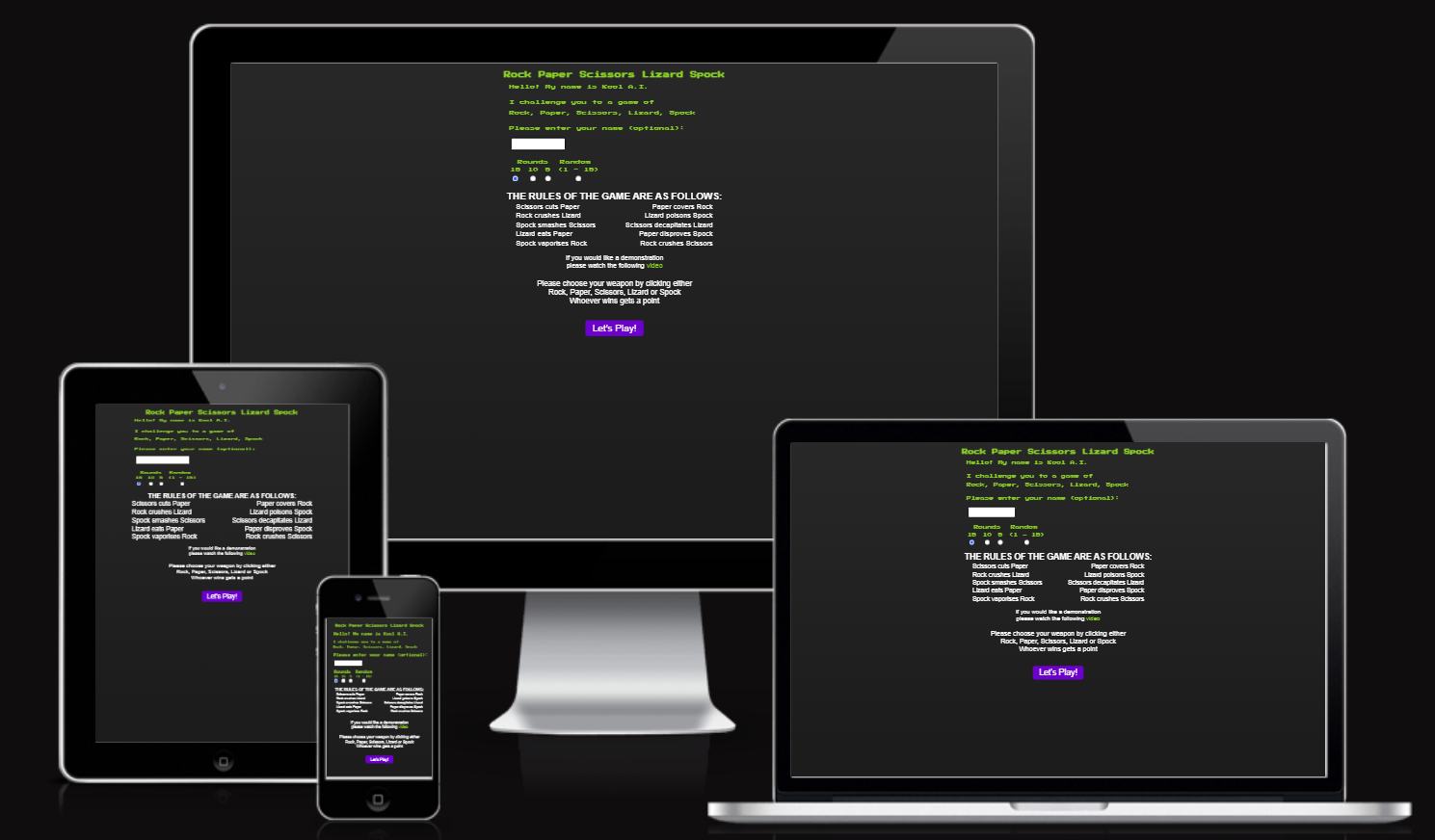
Rock-Paper-Scissors-Lizard-Spock is a fun game for both adults and children.
It is based upon the original centuries-old game of Rock-Paper-Scissors.
To quote Wikipedia
Rock-Paper-Scissors is an intransitive hand game, usually played between two people, in which each player simultaneously forms one of three shapes with an outstretched hand. These shapes are "rock" (a closed fist), "paper" (a flat hand), and "scissors" (a fist with the index finger and middle finger extended, forming a V).
Therefore, this version of the game, Rock-Paper-Scissors-Lizard-Spock incorporates two new shapes namely Lizard and Spock.
To quote Wikipedia
One popular five-weapon expansion is "rock paper scissors Spock lizard", invented by Sam Kass and Karen Bryla, which adds "Spock" and "lizard" to the standard three choices. "Spock" is signified with the Star Trek Vulcan salute, while "lizard" is shown by forming the hand into a sock-puppet-like mouth. Spock smashes scissors and vaporizes rock; he is poisoned by lizard and disproved by paper. Lizard poisons Spock and eats paper; it is crushed by rock and decapitated by scissors. This variant was mentioned in a 2005 article in The Times of London and was later the subject of an episode of the American sitcom The Big Bang Theory in 2008.
Here is a YouTube video whereby you can see Sheldon and Raj settle a dispute about what to watch on TV using this game.
If you need to hear it again, in this video, the explanation is repeated twice (up to 1:14secs):
In this version of the game, the player will challenge the computer which goes by the name of Kool A.I.
Each round, Kool A.I. will choose between two different strategies in an attempt to win.
This online game targets all ages 5+.
- Children 5+
- Adults
- The game should be fun.
- The game should work on all relevant devices, that is, desktops, tablets and mobiles.
- As a user I want the game to be easy to learn and easy to play.
- The user has five choices: Rock, Paper, Scissors, Lizard or Spock.
- In each round, after the user has made their move, the computer opponent will respond with its own move.
- The game will keep the score and the number of rounds and display these figures accordingly.
- The user has the option to play again and again!
-
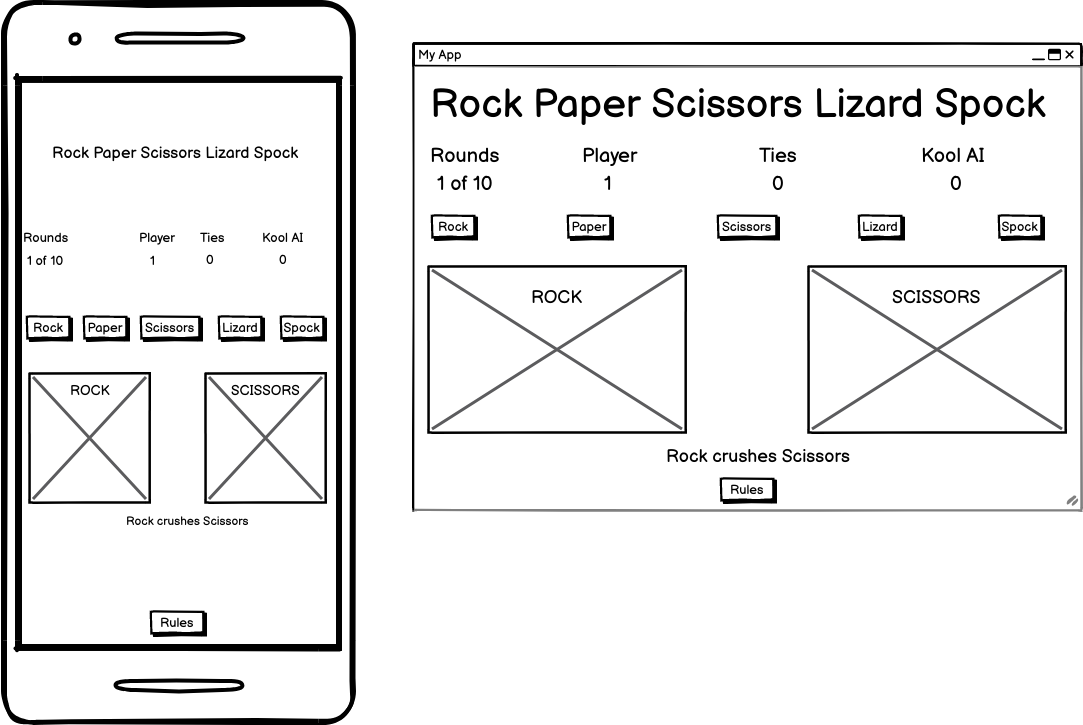
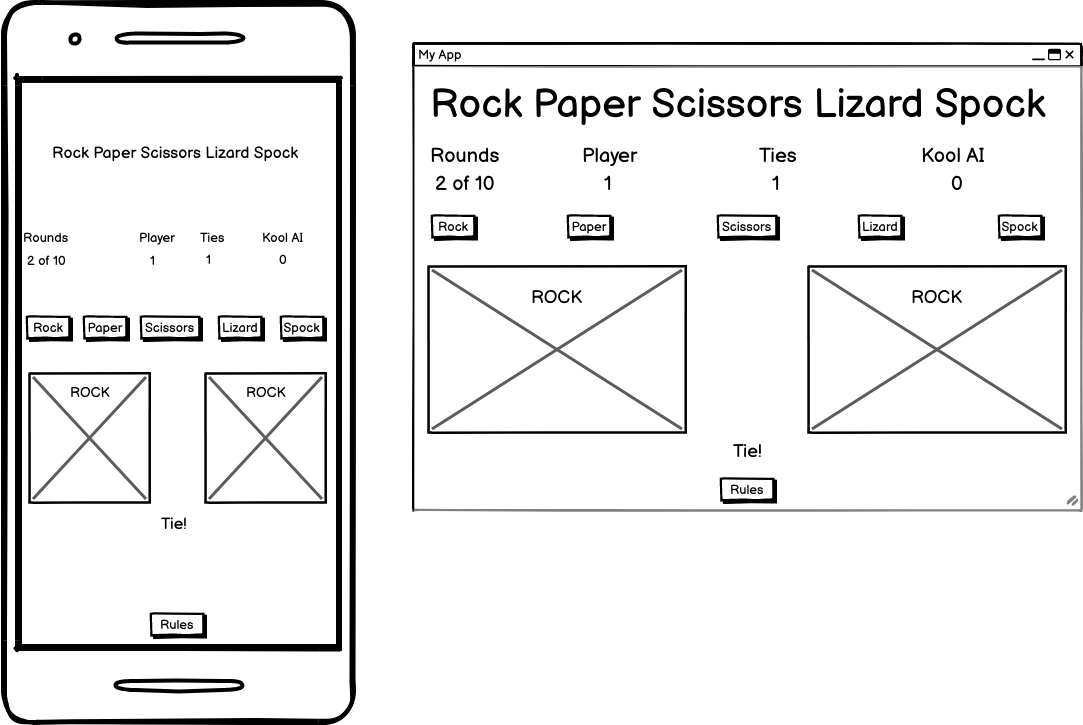
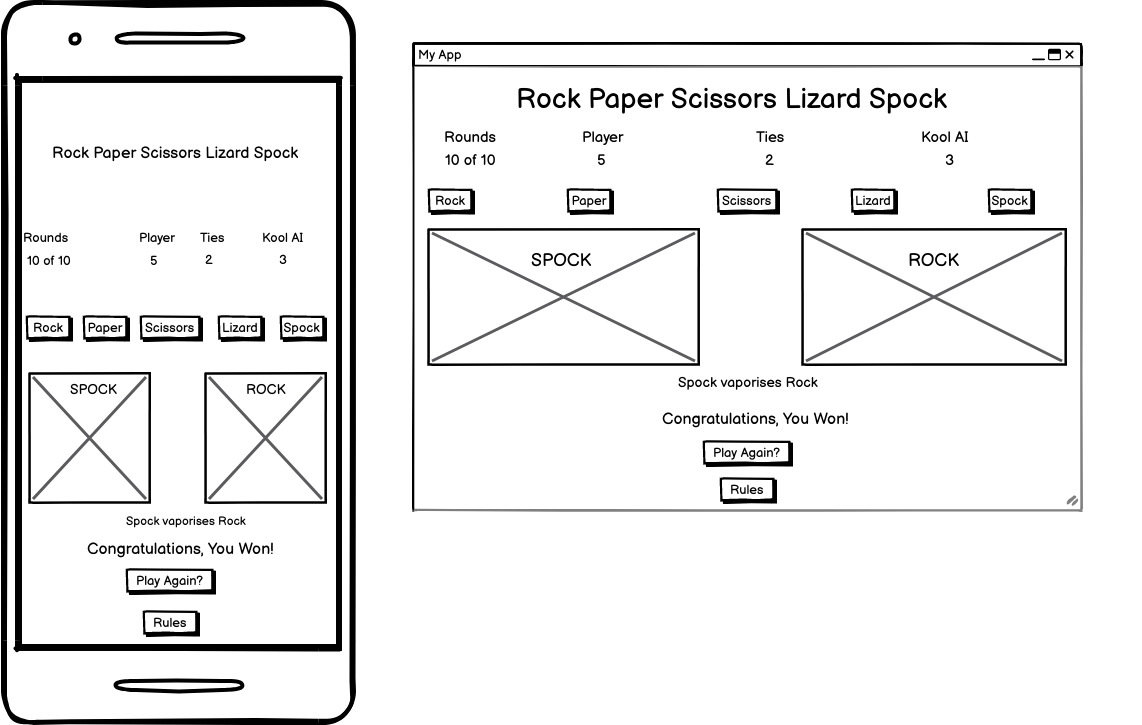
To design the wireframes I used balsamiq. The examples shown are between a mobile view and a desktop view. For tablets the look would be practically the same as the desktop view; just that the sizes of the images and fonts are reduced.
-
Showing the User/Player beating the computer, namely, Kool A.I.
- Showing a Tie.
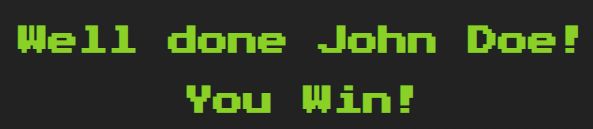
- Showing the end of the game whereby the User/Player has won.
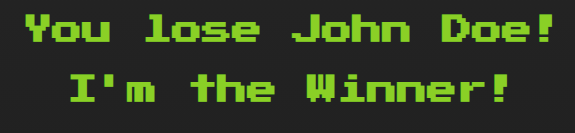
- Showing the end of the game whereby Kool A.I. has won.
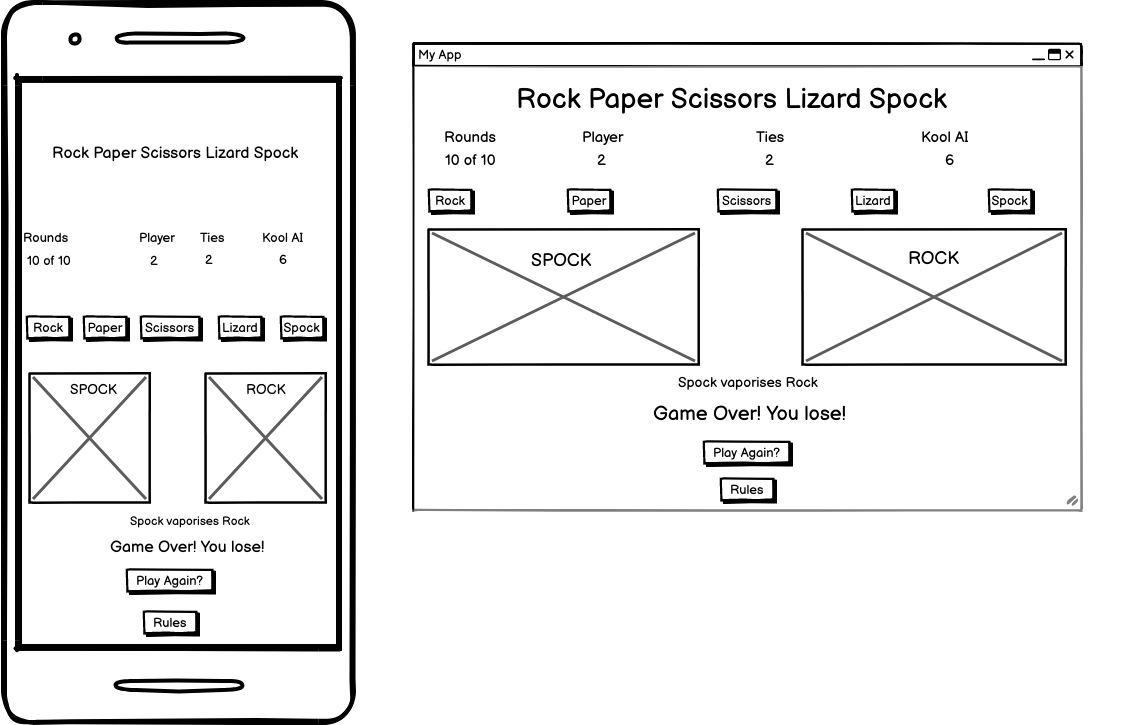
- Showing the end of the game whereby it is a draw.
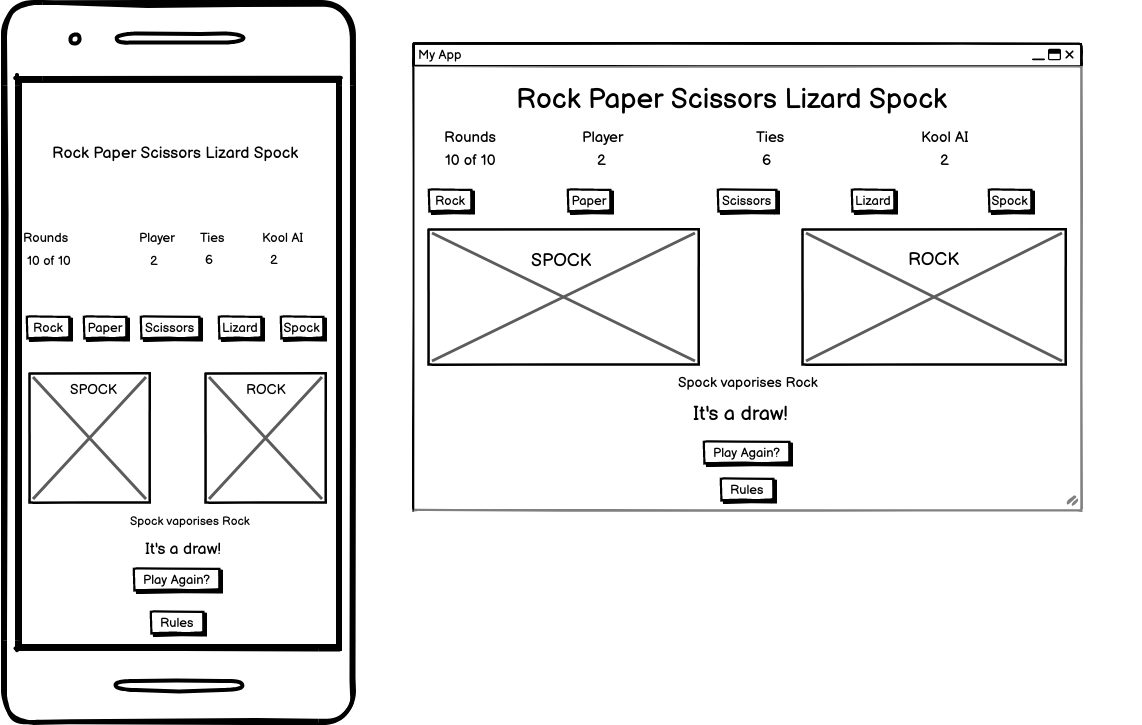
The wireframes above reflect my initial approach of this project however as I continued development there has been significant changes to the initial look as shown below. For example, I removed the Rules button and replaced it with a Home Button instead. The text explaining the rules will now be on the Home Page.
I came across Anna Peterson's article titled
The World’s Easiest “The Rock” Themed Rock Paper Scissors JavaScript Tutorial with the caption
If you’ve ever wanted Dwayne “The Rock” Johnson to teach you JavaScript, well, this isn’t your lucky day, but it is almost like your lucky day!
I really liked her innovative approach so I have adapted the same approach. That is, I looked for images and icons which would depict each of the five weapons for the game.
For example :-
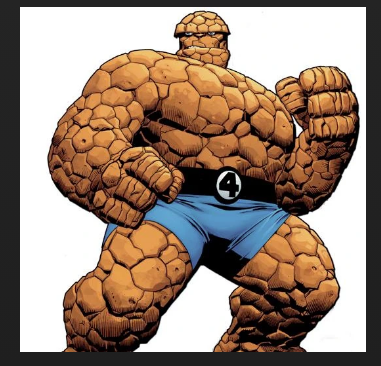
- For Rock, Dwayne Johnson and Marvel Comics character, The Thing AKA Benjamin Jacob Grimm
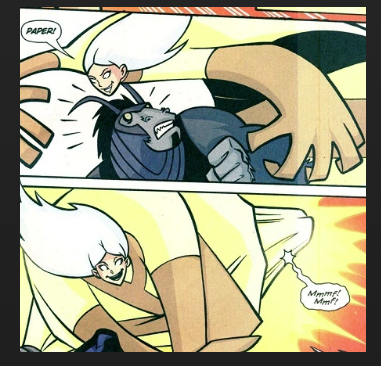
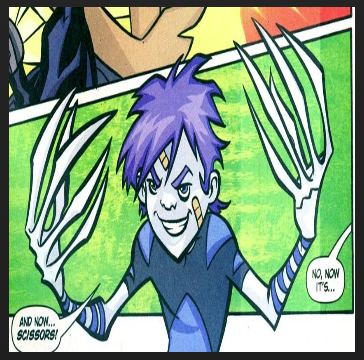
- For Paper, DC Comics Character Teen Titans Paper
- For Scissors, Edgar Scissorhands and DC Comics Character Teen Titans Scissors
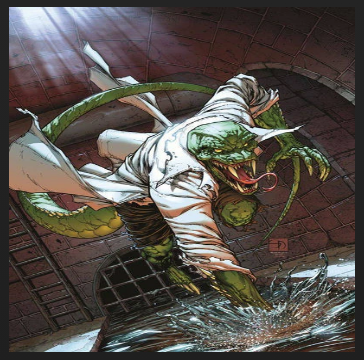
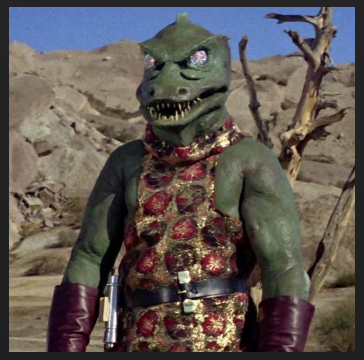
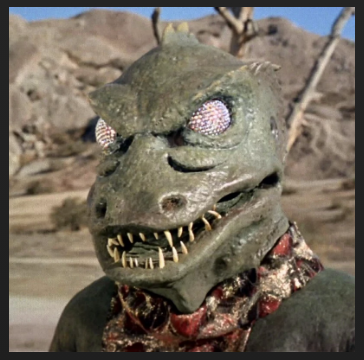
- For Lizard, Star Trek character Gorn and Marvel Comics character, The Lizard AKA Dr. Curtis "Curt" Connors
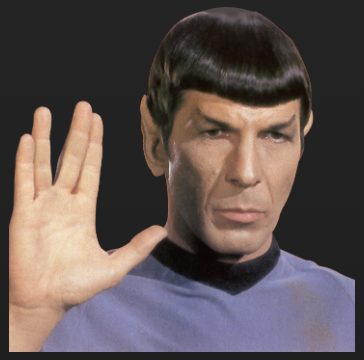
- For Spock, actor Leonard Nimoy (1931-2015)
Although I chose to use the same approach as shown by Peterson, nevertheless, besides
- using the defer tag has Peterson explained and
- my usage of her CSS initialisations
* {
  font-family: Arial, Helvetica, sans-serif;
  box-sizing: border-box;
  text-align: center;
  margin: 0 auto;
}

body {
  height: 100vh;
}
... All the code in this project is mine!
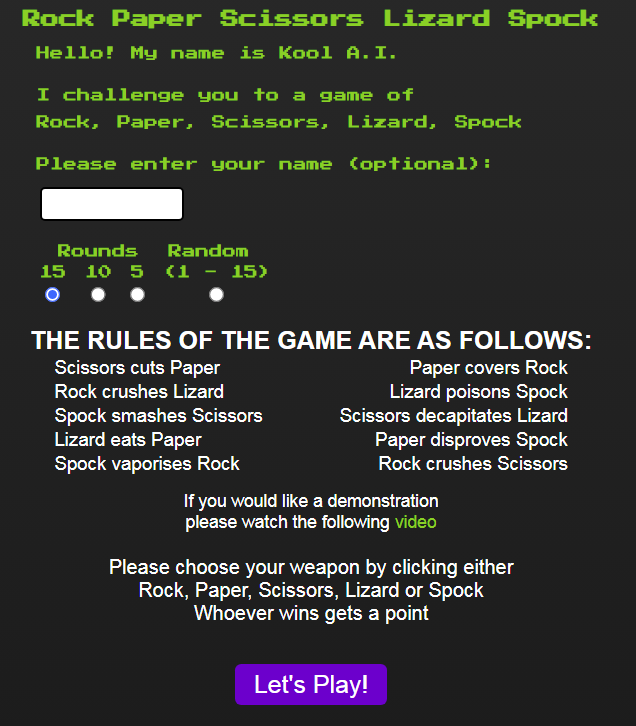
At the onset the user is presented with a form whereby the user can optionally enter their name.
That is, it is not compulsory to enter one's name. It can be left blank.
Then the user chooses the number of rounds. The choice being:
- 15 (the default)
- 10
- 5 or
- a random number between 1 and 15 inclusive.
Then comes the text explaining the rules of the game.
The word video coloured green is a link that when clicked will open up a YouTube video of an episode of Big Bang Theory where Sheldon explains and demonstrates the game to Raj.
At the bottom of the page is the button labelled Let's Play! The user presses this button to begin the game.
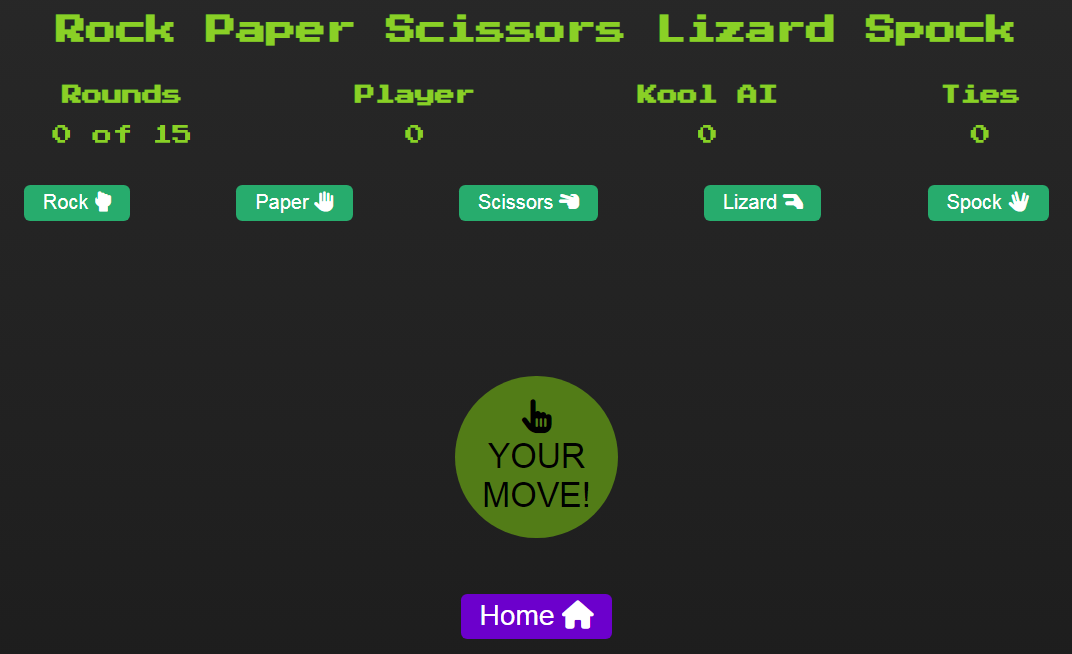
The user is prompted by the YOUR MOVE! prompt to choose between the five buttons
which correspond to the weapons, Rock, Paper, Scissors, Lizard or Spock.
Once the user makes their choice, the computer AKA Kool AI will respond with its choice of weapon.
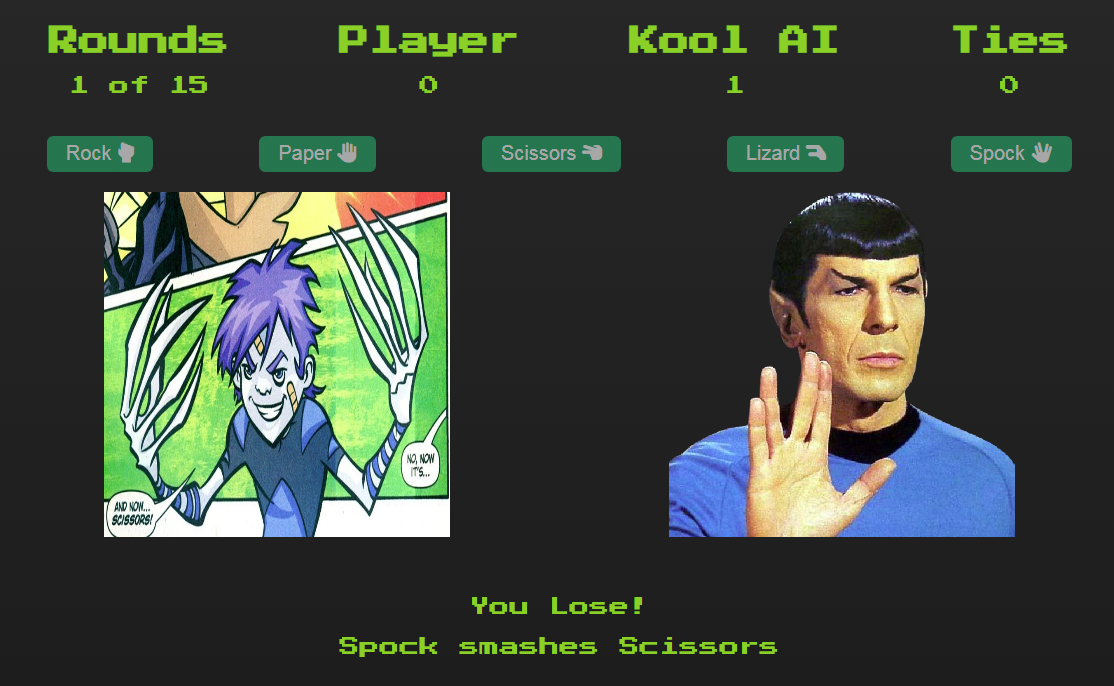
An image depicting the user's weapon choice is shown on the left; seconds later, an image of Kool AI's weapon choice is then shown on the right.
The winner of that round is then determined and a message is shown to explain why the user either won or lost that round. Then a point is given to the victor.
At any time, the user can choose to reset the game by clicking the Home button which in turn will send the user back to the Home page. Thereby the user can enter a different rounds number choice and a new name. The scoring will be reset.
- In this round, Kool AI won because of its choice of Spock. Spock smashes the user's choice of scissors.
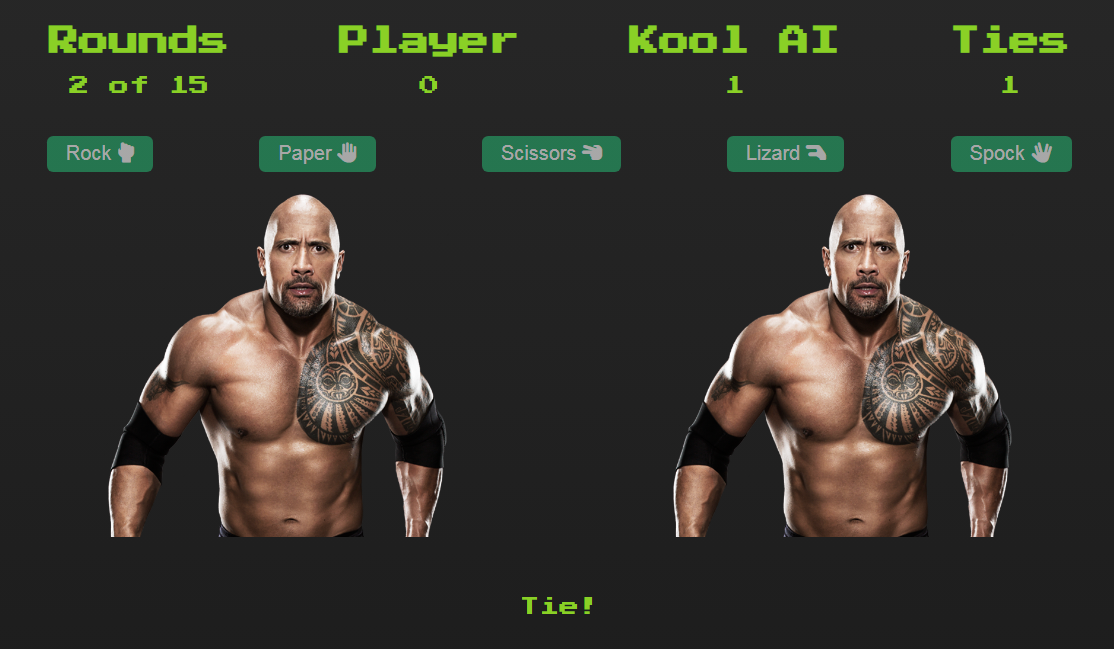
- In this round, both the user and Kool AI tie because of their choice of rock.
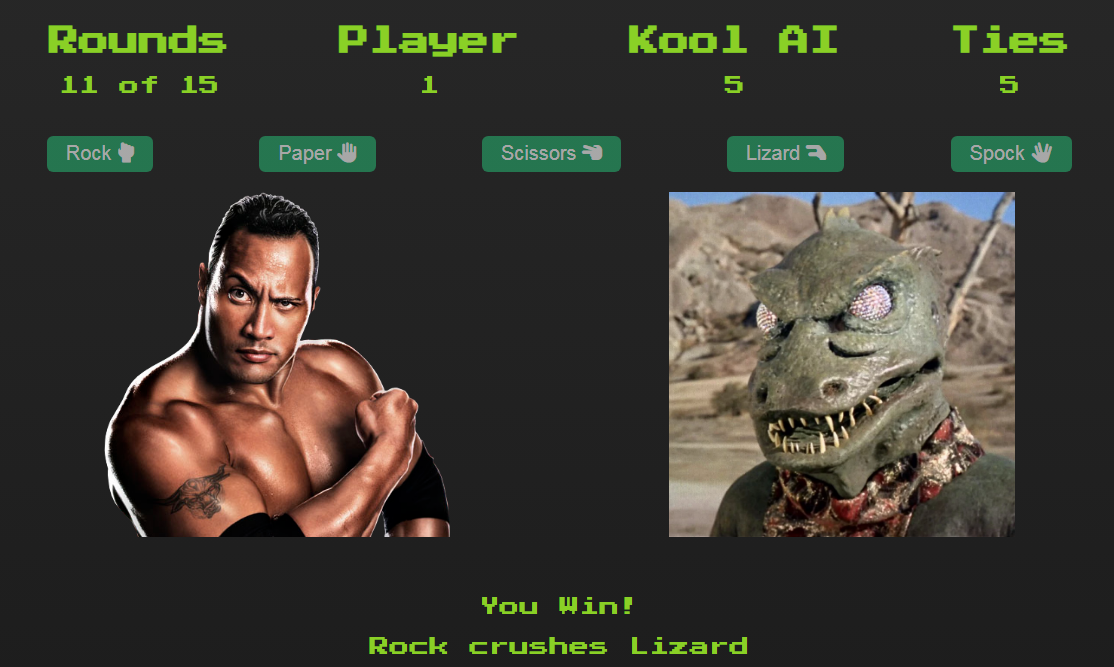
- In this round, the user wins because the user chose rock. Rock crushes Kool AI's choice of lizard.
-
The number of rounds, the number of wins by the user, the number of wins by Kool AI and the number of ties are shown at the top.
-
The game ends when either the user or the computer gets to the predetermined number of rounds.
-
The user can then choose to play Kool AI again by clicking the Play Again! button.

-
Please note: if the user had selected random for the number of rounds, then a new random number of rounds between 1 and 15 inclusive will be used for the next round.
-
At any time, the user can reset the game by clicking the Home button at the bottom of the page.

What follows are screenshots of a sample game session whereby the user had entered their name:

-
Please note: as one enters their name, the name is automatically converted to Title case. That is, each separate word is capitalised whilst the rest of the letters are in lowercase.
-
Title case is also used to display the player's name when the game begins.


This shows the standings between the player and the computer, it gets updated after every round.

- This shows what happens when the user wins.

- This shows what happens when the user loses.

- This shows what happens when the game ends as a draw.

-
This shows what happens when the user wins.
-
This shows what happens when the user loses.
- This shows what happens when the game ends as a draw.

Modulo-5, that is, the remainder after dividing an integer by five, is used to determine the winner of each round.
Each weapon has been assigned the following values:
- ROCK = 0
- PAPER = 1
- SCISSORS = 2
- SPOCK = 3
- LIZARD = 4
Note: the different order of the last two moves is significant.
To quote HandWiki's Rock–Paper–Scissors entry
Rock-Paper-Scissors-Spock-Lizard (note the different order of the last two moves) may be modeled as a game in which each player picks a number from one to five. Subtract the number chosen by player two from the number chosen by player one, and then take the remainder modulo 5 of the result. Player one is the victor if the difference is one or three, and player two is the victor if the difference is two or four. If the difference is zero, the game is a tie.
Alternatively, the rankings in Rock-Paper-Scissors-Spock-Lizard may be modeled by a comparison of the parity of the two choices. If it is the same (two odd-numbered moves or two even-numbered ones) then the lower number wins, while if they are different (one odd and one even) the higher wins.
Therefore, mathematics is being used to determine the winner. I have chosen the first scenario, that is, subtracting the remainder modulo 5 of the two weapons used.
However, instead of numbering the weapons 1 to 5, I have numbered them 0 to 4.
To demonstrate - Player one being the User and Player two being the Computer:
  If User played 0 (Rock) and Computer played 1 (Paper)
  then 0-1 = -1
  -1 + 5 = 4 (added 5 because it was a negative number)
  Since 4 is even, Computer wins - User loses
  Indeed, Paper covers Rock!

  If User played 4 (Lizard) and Computer played 1 (Paper)
  then 4-1 = 3
  Since 3 is odd, User wins - Computer loses
  Indeed, Lizard eats Paper!
Although I employed responsive design when creating this game, it is still intended to operate in portrait mode.
Therefore, when used on a device which has a height in landscape mode less than that of a Nest Hub, that is,
600 pixels; an alert message will be displayed prompting the user to use the device in portrait mode.

Whilst developing this game I went with simply choosing a random number between 0 and 4 inclusive to determine the weapon choice:
   function determineComputerChoice() {
      /*
            For now, simply use a random number between 0-4 inclusive
      */
      return hand_weapons[Math.floor(Math.random() * 5)];
   }
Once the game was up and running I added two strategies for the computer to use when playing against the user.
At the beginning of each game i.e. starting from round 0; either number 1 or number 2 is selected randomly;
then that is the strategy number that the computer uses for that game.
-
Assign each weapon a unique number: ROCK=0, PAPER=1, SCISSORS=2, SPOCK=3, LIZARD=4
-
Each of the five weapons would start of with a equal weight of 1
-
The weaponWeights array would look like this [1, 1, 1, 1, 1]
-
So when the computer AKA Kool AI, is about to choose a weapon the following algorithm is followed:
- Add up all the weights e.g. 1 + 1 + 1 + 1 + 1 = 5 - call it 'total'
- Produce a random number less than one - call it 'randomNumber'
- Then loop through the weaponWeights array as follows:
Pseudocode:
sum=0
for (i=0; i < weaponWeights.length - 1; i++)
{
        sum = sum + weaponWeights[i] / total
        if randomNumber < sum
              return i
        end if
}
return weaponWeights.length - 1
The value returned would be used to select the computer's choice of weapon
Effectively, the above algorithm is choosing between 1/5, 2/5, 3/5, 4/5, 5/5 i.e. 1
if sum < 1/5 return 0 i.e. ROCK
else if sum < 2/5 return 1 i.e. PAPER
else if sum < 3/5 return 2 i.e. SCISSORS
else if sum < 4/5 return 3 i.e. SPOCK
else return 4 i.e. LIZARD
First time round, the chances of each weapon being chosen are evenly distributed; each has a value of 1/5 i.e. 0.2.
Now if Kool AI happens to win that round, for example, with its choice of SPOCK, then these steps will follow:
- Add 1 to the SPOCK value in the weaponWeights array
- So weaponWeights becomes [1, 1, 1, 2, 1]
So then, the next time the above algorithm is executed, total is calculated as 1+1+1+2+1=6
Effectively, a random number then must be chosen from 1/6, 2/6, 3/6, 5/6, 6/6
The range that is > 3/6 and <= 5/6 is larger than the other ranges, therefore there is a greater chance that ROCK will be selected again.
So conclusively for Strategy 1, this algorithm is used for each of Kool AI's winning choice.
In doing so, the computer's winning choices will have a greater possibility of being chosen for the next round.
There is a branch of science known as game theory.
Game theory researchers have been trying to figure out a winning strategy for the typical rock-paper-scissors game, and have come up with intriguing results.
To quote this article titled How To Use Science To Win At Rock-Paper-Scissors?
Having faced challenges with applying game theory, some Chinese researchers decided to conduct an experiment with 360 participants. They split the participants into groups of 6 and conducted a series of rock-paper-scissors games.
They came up with two key empirical observations that didn't fit the theory of chance:
- When a player won a round, more often than not, the player chose the same winning element for the next round.
- When a player lost a round, more often than not, the player chose to avoid the same losing element for the next round.
...
Based on the empirical observations, the researchers came up with 2 conditional responses, also known as
heuristics in decision theory.
After testing, they confirmed that the strategy performed better than game theory in maximizing win rates.
Based on these observations, the researchers came up with the following winning strategy
that performed better than the findings of game theory.
From the above article, here is the winning strategy in the form of two heuristics:
- If you win using one element, for the next round, go for whatever element your opponent just lost with in the current round.
- If you lose using one element, for the next round, go for whatever was not called by either of the players in the current round.
Therefore, for Strategy 2, the above algorithm is used by Kool AI in determining which weapon it will use.
As a reminder, each time, a new game is begun with Kool AI, i.e. starting from round 0;
either number 1 or number 2 is selected randomly; then that is the strategy number that the computer uses for that game.
I choose to use three images of each weapon in order that for each round, the computer could randomly choose an image to depict both the user's choice of weapon and the computer's choice of weapon.
The fifteen images are as follows:
- Rock
- rock1_dwayne.png - from kindpng.com

- rock2_dwayne.png - from kindpng.com

- rock3_bengrimm_thething.webp - from marvel.fandom.com
- Paper
- paper1.jpg - from icon-library.com
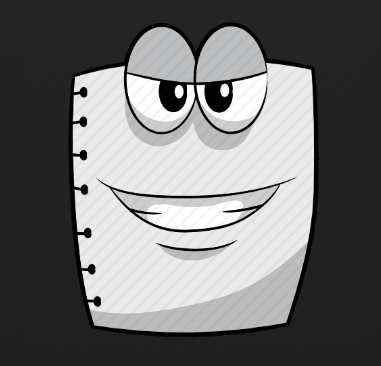
- paper2_fadilah_unsplash.jpg from unsplash.com Courtesy of Fadilah Im
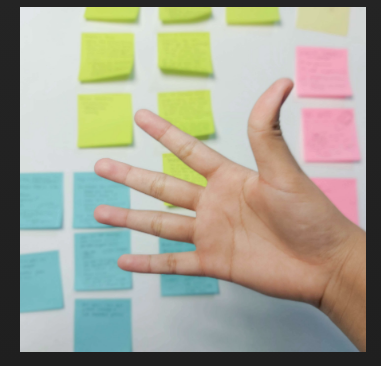
- paper3_earth_teen_titans.webp - from teentitans.fandom.com
- Scissors
- scissors1.png - from kindpng.com
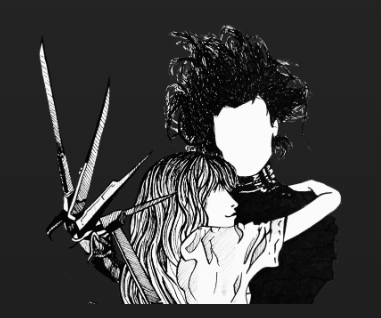
- scissors2_daniil_onischenko_unsplash.jpg from unsplash.com Courtesy of Daniil Onischenko
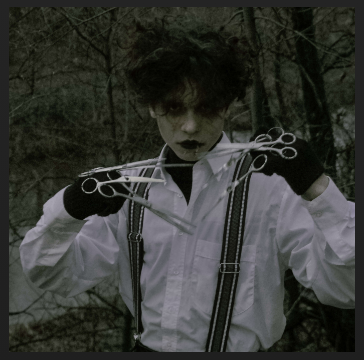
- scissors3_earth_teen_titans.webp - from teentitans.fandom.com
- Lizard
- lizard1_drconners.webp - from marvel.fandom.com
- lizard2_gorn.webp - from memory-alpha.fandom.com
- lizard3_gorn_arena.webp - from memory-beta.fandom.com
- Spock
- spock1.png - from kindpng.com
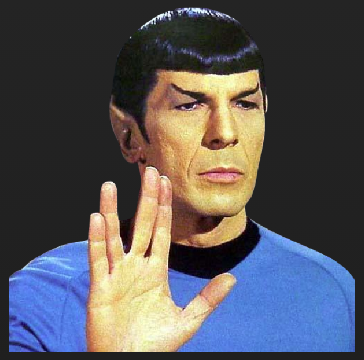
- spock2.png - from kindpng.com
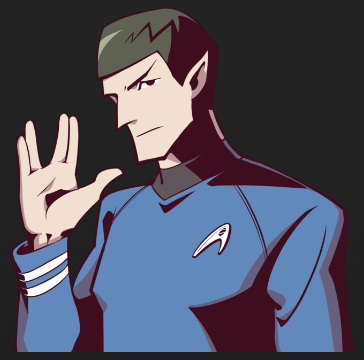
- spock3.png - from kindpng.com
It has been stated that "The optimal file size for website images should be no more than 200 KB to ensure fast loading times, as images have a significant impact on site speed."
In light of these facts:
- I used TinyPNG to compress the sizes of 'spock1.png, spock3.png, scissors1.png and rock2_dwayne.png'
so that they are less than 200 KB. - I used Shutterstock Image Resizer to compress the sizes of 'rock1_dwayne.png and scissors2_daniil_onischenko_unsplash.jpg'
so that they are less than 200 KB.
I went to Google Fonts for my choice of fonts. I decided to use 'Press Start 2P' because I wanted the user to feel that they are playing against a computer. The font 'Press Start 2P' in my opinion has that 80s computer game feel and look to it.
For the buttons' choice of each weapon I spell out each weapon followed by an icon which depicts the hand shape
 The icons I sourced from fontawesome.com (version 5.15.4).
So, the five buttons have the form as follows:
The icons I sourced from fontawesome.com (version 5.15.4).
So, the five buttons have the form as follows:
1. Rock <i class="fas fa-hand-rock"></i>
2. Paper <i class="fas fa-hand-paper"></i>
3. Scissors <i class="fas fa-hand-scissors"></i>
4. Lizard <i class="fas fa-hand-lizard"></i>
5. Spock <i class="fas fa-hand-spock"></i>
-
For the background I use a black linear-gradient(360deg, #1C1C1C 10%, #494949 360%) for the main background colour.

I sourced that linear-gradient from Hook Agency.
-
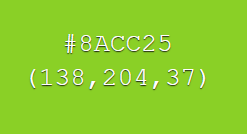
The green colour #8acc25 is used for the main font colour.
-
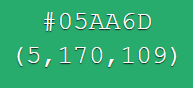
The background colour of the weapon buttons is #05aa6d

-
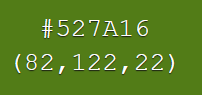
The background colour of the YOUR MOVE! indicator is #527a16

-
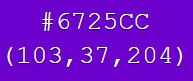
The background colour for the Let's Play! button, the Play Again! button and the Home button is #6725cc


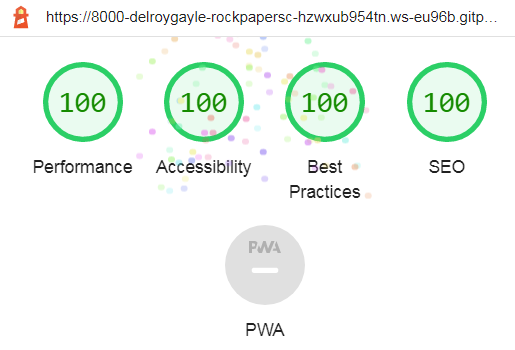
- HTML
No errors found when running the code through the W3C validator.
- CSS
No errors found when running the code through the Jigsaw validator.
- JavaScript
No errors found when running the code through the Jshint validator.
It was explained to me that my initial navigation model was not compliant. I had to start over as a result.
However, if one would like to see the original, you may do so here.
It was my understanding that if an error is thrown and there is no catch the error will be console.logged as Uncaught with a corresponding message.
After which the script would stop. However, this was not my experience whilst developing this game.
That is, I had error-handling code in place in case of any errors. This code worked and indeed pointed out a logic error in my program.
The error handling code was as follows:
     if (!imageCharacter || imageIndices[imageCharacter] === undefined) {
         const errorMessage = `Unknown image info: ${imageInfo}`;
         alert(errorMessage);
         throw `${errorMessage}. Aborting!`;
      }
However although the error was indeed being shown in the console.log

Yet my script kept on running expecting the player's next game move!
It was my understanding that JavaScript was meant to stop when an error occurs!
Whilst investigating the matter I came across this quote
An uncaught exception in a Javascript script does cause the script to be terminated, but the browser executing the script does not remember that it terminated abnormally.
So in effect, that is what was happening with my script. The browser (in my case, Chrome) kept on executing the script therefore the game kept running expecting the player's next move!
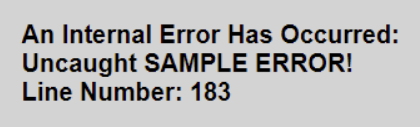
I looked at this Window: error event information and thereby implemented an error handling routine:
window.addEventListener("error", (event) => {
   // Remove everything from the DOM's body
...
const newDiv = document.createElement("div");
   newDiv.innerHTML = "<h1>An Internal Error Has Occurred:</h1>";

   // Create element for the error message
   let errorMessage = document.createElement("h2");
   errorMessage.innerText = event.message;

   // Add the message to the newly created div
   newDiv.appendChild(errorMessage);
...
   // Display the error on the webpage
   bodyElement.appendChild(newDiv);

});
Now if any error occurs the entire webpage is cleared and a central error message is displayed.
In order to remove warnings such as:
- 'arrow function syntax (=>)' is only available in ES6 (use 'esversion: 6')
- 'template literal syntax' is only available in ES6 (use 'esversion: 6')
Solution: I had to - Unclick New JavaScript features (ES6)
- Then add /*jshint esversion: 6 */ to the top of my script
Then I got the warning:
- 'nullish coalescing' is only available in ES11 (use 'esversion: 11')
Solution: I had to - replace the /* jshint esversion: 6 */ comment with
- /* jshint esversion: 11 */
Jshint produced the following warning:
Functions declared within loops referencing an outer scoped variable may lead to confusing semantics.
(showThisImage, determineComputerChoice, updateScoresThenDetermineNextAction)
Strictly speaking, this is a warning not an error!
Nevertheless I tried to remove it.
The warning was due to the following code:
      buttonsList[i].addEventListener("click", function () {
         showThisImage(weaponValues);
         const computerWeaponValue = determineComputerChoice();
         showThisImage(computerWeaponValue);
         updateScoresThenDetermineNextAction(weaponValues, computerWeaponValue);
      });
I tried using the editor 'Refactor' functionality
      buttonsList[i].addEventListener("click", function () {
         addListenerToButton(showThisImage, weaponValues, determineComputerChoice, updateScoresThenDetermineNextAction);
      });


followed by

   function addListenerToButton(showThisImage, weaponValues, determineComputerChoice, updateScoresThenDetermineNextAction) {
            showThisImage(weaponValues);
            const computerWeaponValue = determineComputerChoice();
            showThisImage(computerWeaponValue);
            updateScoresThenDetermineNextAction(weaponValues, computerWeaponValue);
   }
This produced the same warning i.e.
Functions declared within loops referencing an outer scoped variable may lead to confusing semantics.
(addFunctionToButton, showThisImage, determineComputerChoice, updateScoresThenDetermineNextAction)
I found the following example of a Closure solution in this article
JavaScript closure inside loops – simple practical example
    const funcs = [];
    function createfunc(i) {
        return function() {
          console.log("My value: " + i);
        };
    }
    for (let i = 0; i < 3; i++) {
        funcs[i] = createfunc(i);
    }
Thus individual functions were being created with the closured current values of 'i' then placed in an array.
I needed to do something similar with the current values of 'weaponValues' in my script.
So that the resultant listener functions would thereby be added to each of the relevant five weapon-depicting buttons.
The result I came up with was:
      let newListener = createListener(showThisImage,weaponValues);
      buttonsList[i].addEventListener("click", newListener);

      followed by

      function createListener(showThisImage, weaponValues) {
          return function () {
              showThisImage(weaponValues);
              const computerWeaponValue = determineComputerChoice();
              showThisImage(computerWeaponValue);
              updateScoresThenDetermineNextAction(weaponValues, computerWeaponValue);
          };
      }
The above changes successfully removed the Jshint warning.
- GitHub
- GitPod
- W3C HTML Validation service
- W3C CSS Validation service
- JSHint, a JavaScript Code Quality Tool
- It would be great to have sound effects that play when a move is made
- To have some sort of animation of fist movements whilst the computer makes its choice
This project was deployed using GitHub using the following method:
- Open the correct repository.
- Click on Settings in the menu.
- Click on Pages in the side menu.
- Go down to Branch under Build and deployment and select main in the dropdown.
- Save the changes. Then wait for a link that should appear at the top of the screen under GitHub Pages.
The link would be worded as Your site is live at https://<Your GitHub Name>.github.io/<Repo Name>/
followed by a Visit site button.
(If nothing has happened after a few minutes then refresh the page and the link should appear.)
The concept of using images for each weapon that I had used was based on Anna Peterson's novel approach as shown in her article
The World’s Easiest “The Rock” Themed Rock Paper Scissors JavaScript Tutorial
Many thanks to my mentor Derek McAuley for his technical expertise and guidance.