You'll need a Github account for all of this.
You'll need to install Python (through the Anaconda distribution) from https://www.continuum.io/downloads#all (you can get the 2.7 or 3.5 version of Python this).
After installing Anaconda, open a terminal (or cmd.exe on Windows) and type:
pip install urubu
This will install Urubu, the software that makes the website.
You'll also need git installed. On Ubuntu Linux, run sudo apt-get install git.
On Windows, I recommend installing the "Git for Windows SDK" from
https://git-for-windows.github.io/. This will also come with make and a bash
shell, which is good to have.
When I say "terminal" below, I will mean this git bash shell that you've
installed.
After installing git, you'll need to configure it with your information. Run this in a terminal:
git config --global user.name "Your Full Name"
git config --global user.email youremail@gmail.com
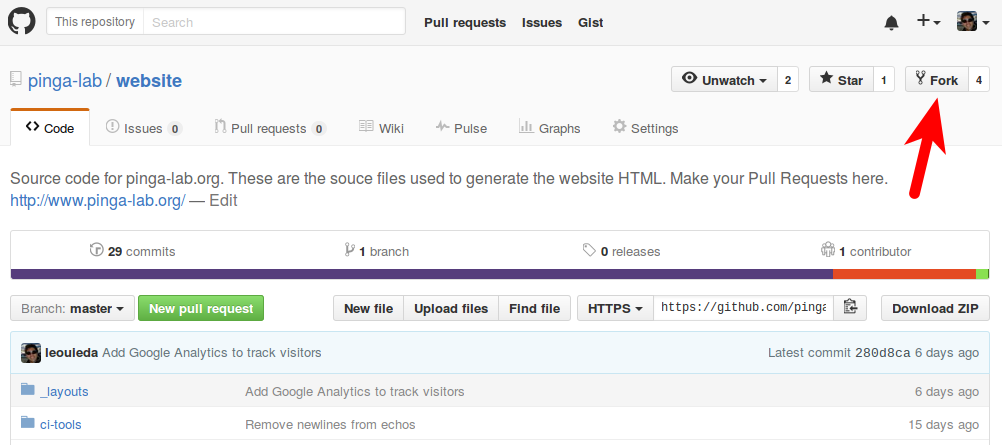
First, click on the "fork" button in the pinga-lab/website repository to grab a copy of the repository to your personal account. You only need to do this once.
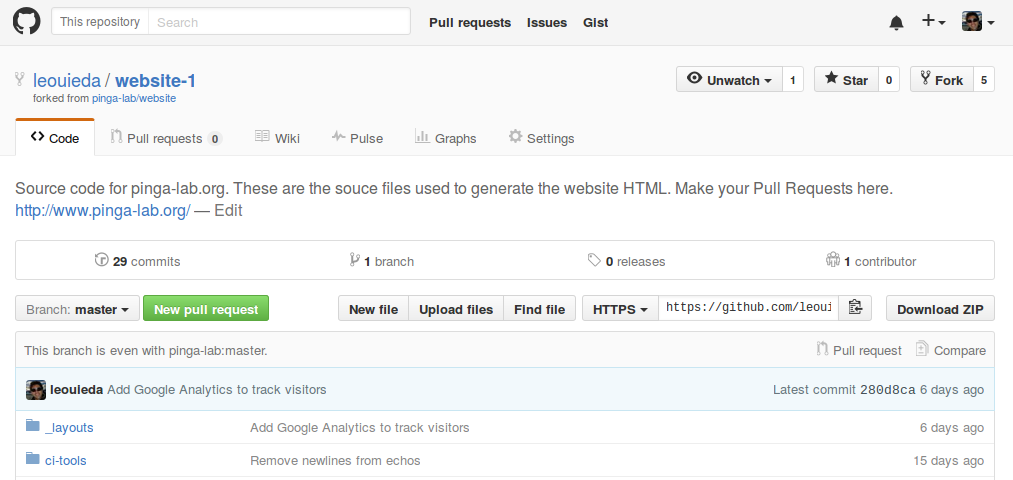
Then you can clone your fork of the site to your personal computer so you can edit the files. In a terminal, type:
git clone https://github.com/YOUR_USER_NAME/website.git
This will create a website folder in the current directory holding the
website code.
If you've already done the above before, your personal copy is probably out of sync with the original repository at pinga-lab/website.
To update your local copy and fork, first you'll need to register the original repository. In your local copy, run:
git remote add upstream https://github.com/pinga-lab/website.git
This will register the original repository as a source. Then run the following to pull in changes from the original:
git checkout master
git pull upstream master
And finally, update your fork:
git pull origin master
Now your local copy and fork should be updated.
Before you make changes, you should first create a "branch" so that your changes don't break the main site. To do this, run:
git checkout master
git checkout -b NAME_OF_YOUR_BRANCH
You can make as many branches as you like, so don't worry. Once you have your branch checked out, changes you make to the files in your local copy will be committed to your branch.
Now you can edit the files you want or add new ones (follow the instructions on the README.md).
After you're satisfied with your changes, you should mark them for addition with:
git add FILE1 FILE2 FILE3 ...
And then make a commit with those changes:
git commit -m "Message describing your changes"
Now you can push your local changes to your fork by running:
git push -u origin NAME_OF_YOUR_BRANCH
At this point, your changes are registered in your personal fork on Github. Now we have to integrate them into the main website code.
Go to the Github page for the original repository pinga-lab/website. There should be a line there with your branch and a green "Compare & pull request" button.
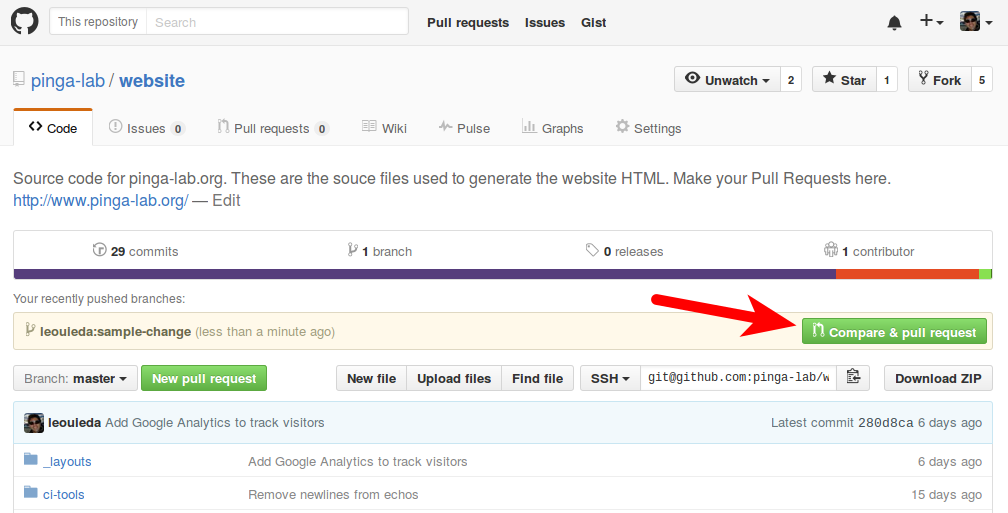
Click on the button to open a new pull request.
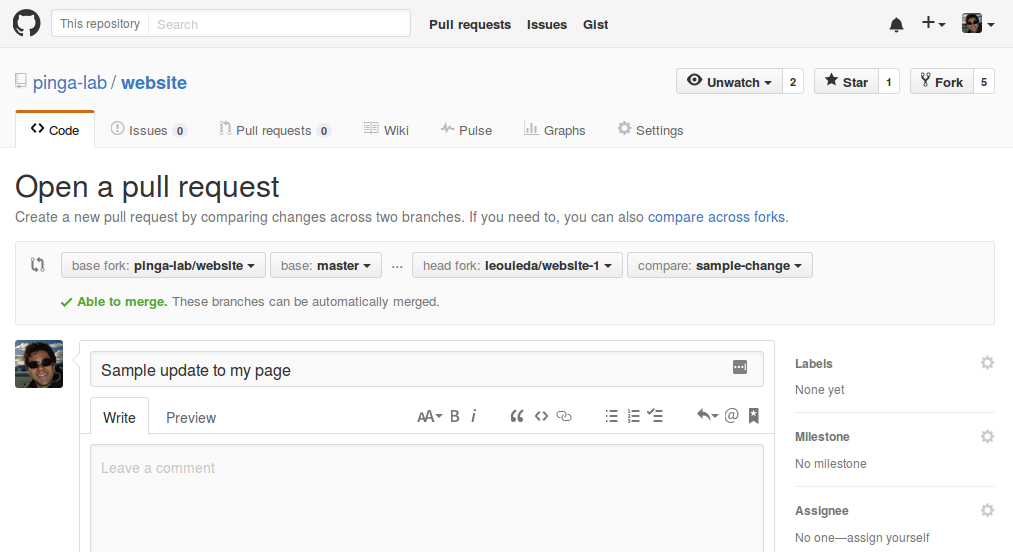
Fill the text box with a description of the changes you made and submit the pull request.
Now, leave a message on the Slack group and someone will review and merge your pull request. When that's done, the website will be updated automatically.