Formerly: UVTT Importer.
A Virtual Tabletop (VTT) map importer extension for Owlbear Rodeo. It imports maps, complete with walls and doors (where applicable), from:
- Universal VTT (.uvtt) files
- DD2VTT (.dd2vtt) files
- FoundryVTT scene JSON files
- FoundryVTT Module ZIPs and
module.jsonmanifest URLs (Includes map image & walls) - Raw image and video files (to utilize the extension's compression features)
Designed for use with the Dynamic Fog Extension for basic wall and door functionality. For advanced features, consider the Smoke & Spectre Extension.
- Import maps from UVTT/DD2VTT files, and complete FoundryVTT module ZIP archives
- Import payloads dynamically via Web URLs or natively wrapped
module.jsonconfiguration links - Upload raw image and video files to take advantage of the built-in file compression
- Automatic wall and door creation from imported VTT data
- Image and video compression modes that target Owlbear Rodeo subscription limits
- Support for placing walls and doors relative to selected items
- Automatic DPI adjustment based on grid size
This will create a new scene using your VTT file or raw media file. If a VTT file is used, it will include walls and doors.
- Click the Scene Importer icon in the top left corner.
- Select your
.uvtt,.dd2vtt,.zipmodule file, raw image, raw video, or paste a direct URL link. (Note: Standalone FoundryVTT .json config files are not supported for new scene creation as they typically don't include an embedded map image. For full image support, upload a Foundry ZIP module instead). - Choose your compression mode (see below).
- Click "Create New Scene". This can take a moment, depending on the file size and compression.
- Once the process is complete, a new scene with your map will be available in your scenes list.
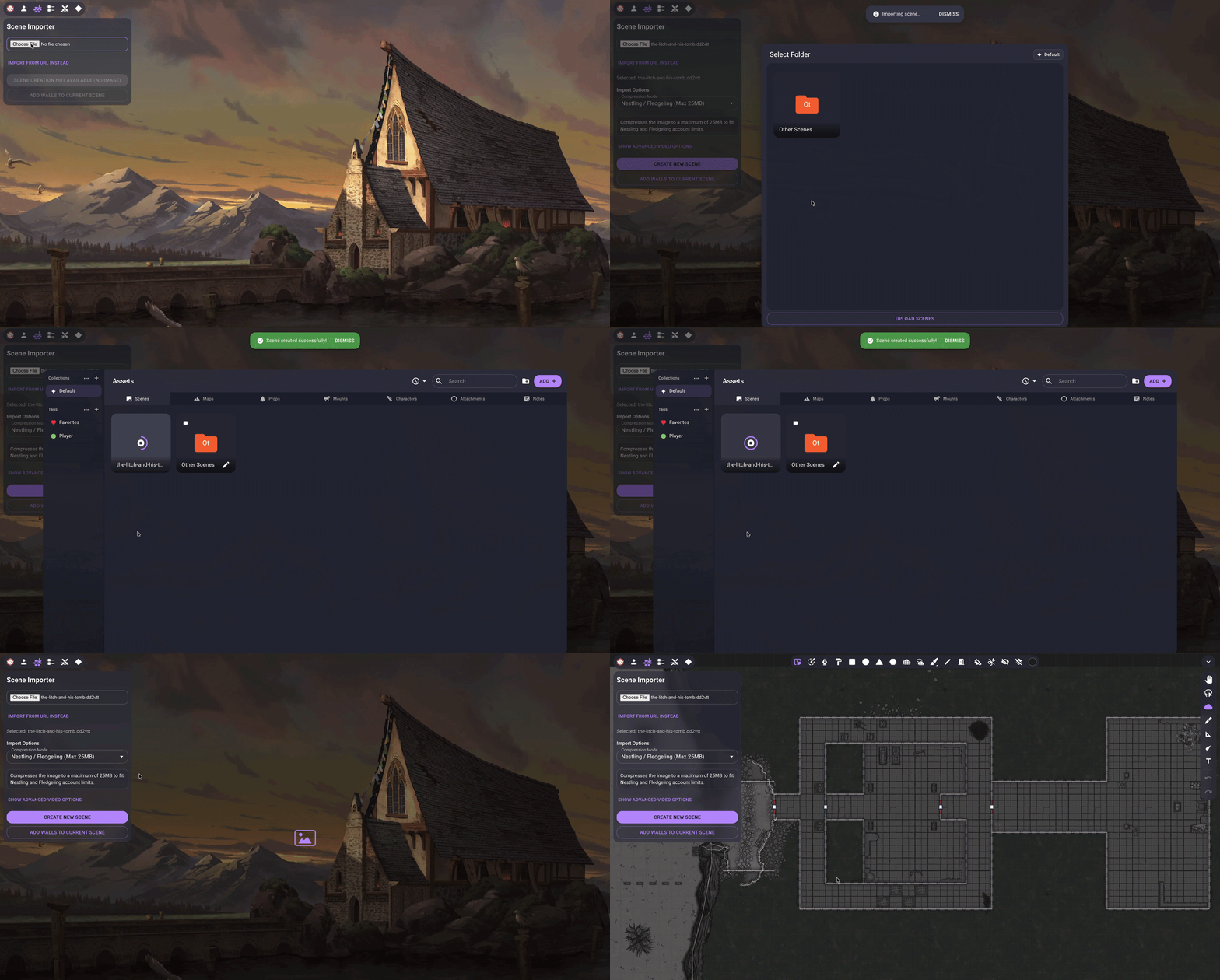
Note: If your UVTT file does not contain a map image, you will not be able to use the "Create New Scene" option. In this case, you should first set up your scene with a map image manually, and then use the "Add Walls to Current Scene" feature.
You can add walls and doors to an existing scene in two ways:
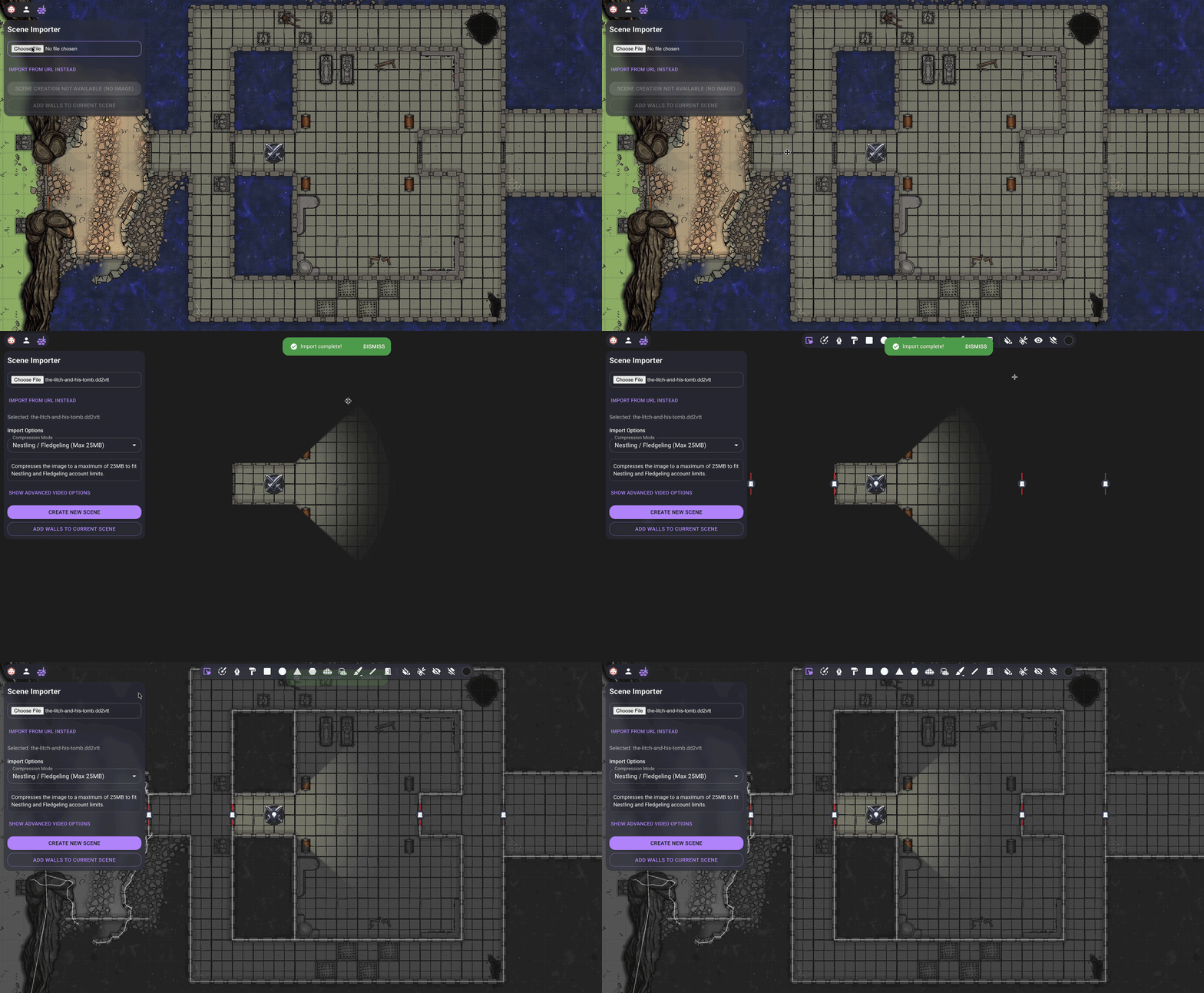
- Open the scene where you want to add walls/doors
- Click the Scene Importer button in the toolbar
- Select your
.uvtt,.dd2vtt,.json,.zipfile, or paste a valid URL. - Click "Add Walls to Current Scene"
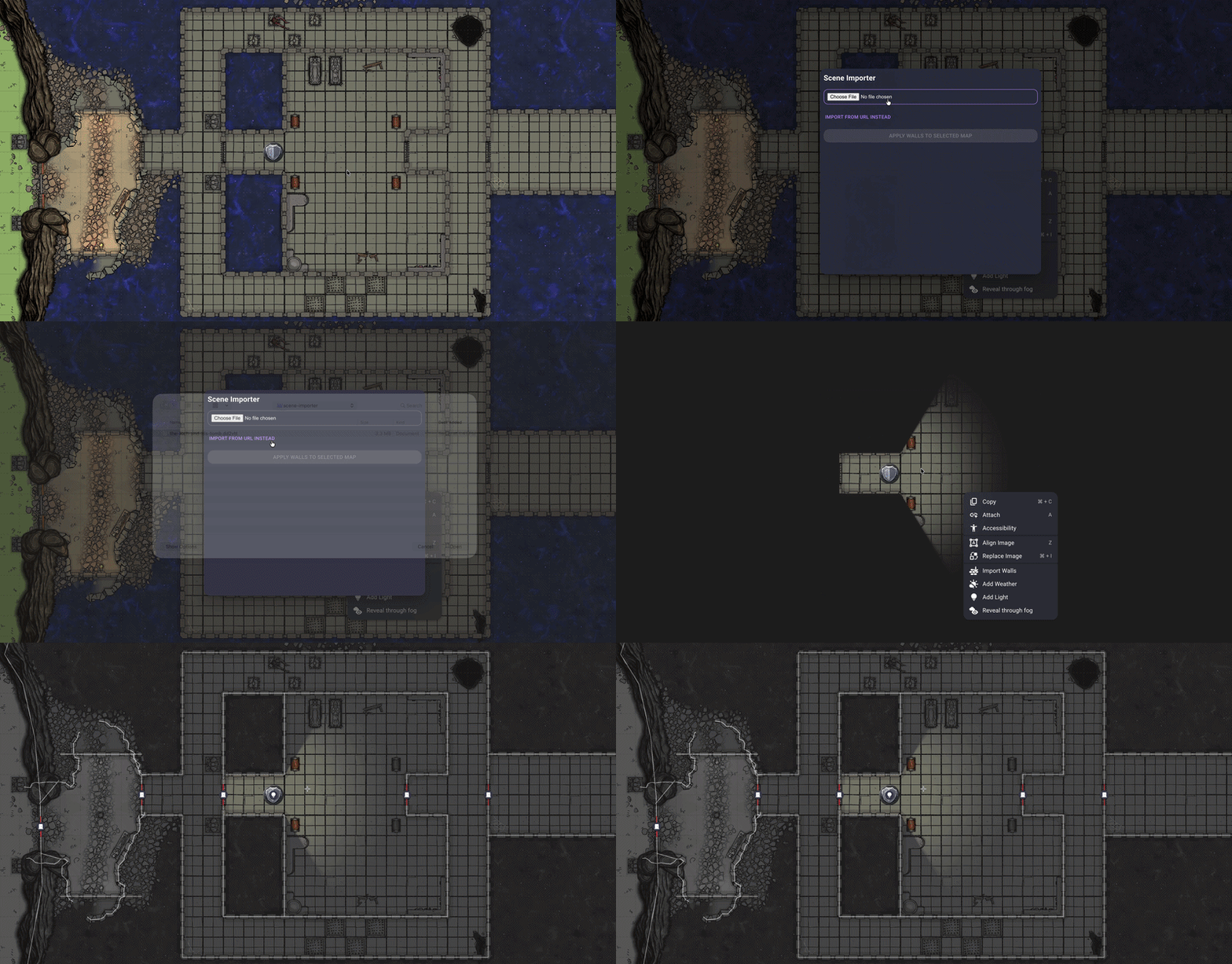
- Select the Map you want to Import Walls for
- Right Click it
- Click "Import Walls"
- The extension will automatically open the Importer Selector so you can choose exactly which Wall structure you're casting onto your highlighted image.
- Wait for Walls and Doors to be added to the Map
Owlbear Rodeo has specific file size limits depending on your subscription tier. The extension dynamically adjusts the available compression options based on whether you are importing an image or a video to match these limits.
Select the option that includes your current Owlbear Rodeo subscription tier:
- Images: Nestling / Fledgeling (max 25MB) or Bestling (max 50MB)
- Videos: Nestling (max 50MB) or Fledgeling / Bestling (max 100MB)
| Mode | Behavior |
|---|---|
| No Compression | Uploads the original file without modification. The upload will fail if the file exceeds your account's size limit. |
| Your Tier Name | Compresses the file to fit your selected tier's limit. Images are converted to WebP and quality is incrementally reduced until the file is under the maximum size. |
When importing video maps, you can adjust the following settings to control how the files are processed:
- VP9/WebM: Default format. Balances file size and browser compatibility.
- AV1: Yields the smallest file sizes, but takes longer to process.
- H.264: Maximum compatibility across older browsers and mobile devices.
- Remove audio: Removes the audio track to reduce file size.
- Transcode anyway: Compresses the video even if it is already under the size limit to save storage space.
- Max video dimension: Limits the longest side in pixels (example:
1920) to reduce processing time and file size. Leave empty to keep the original resolution.
The extension can be installed from https://scene-importer.pages.dev/manifest.json
- Clone the repository
- Install dependencies:
pnpm install - Start development server:
pnpm dev - Build for production:
pnpm build
Built with React, TypeScript, and Vite for Owlbear Rodeo's extension platform.
The map featured in the header image and demonstration GIFs are from mbround18's VTT Maps repository and is available under the CC0 1.0 Universal license.